
 Admin
Admin
In today’s digital world, your iPhone likely holds thousands of precious memories—family gatherings, travel adventures, work documents, and creative projects. But storing everything on your phone isn’t always practical. Whether you’re running out of storage or simply want a secure backup, learning how to upload pictures from iPhone to computer is essential.
The good news? Transferring photos is easier than ever. Whether you use a Windows PC, Mac, USB cable, iCloud, or wireless methods, there’s a solution tailored to your needs. This guide will walk you through every reliable method in clear, detailed steps. By the end, you’ll confidently move photos without stress, data loss, or confusion.
Why You Should Transfer Photos from iPhone to Computer
Your iPhone camera produces high-resolution images that consume significant storage over time. Modern devices like the iPhone 15 can capture ultra-detailed images and 4K videos, which quickly fill up internal memory. Transferring photos helps free up space while keeping your memories safe.
How to upload pictures from iPhone to computer? Backing up your pictures to a computer also adds an extra layer of security. Cloud storage is helpful, but having local copies ensures protection in case of account issues, accidental deletions, or device damage. Additionally, editing photos on a larger screen offers better control and precision, especially for professionals or content creators.
How to Upload Pictures from iPhone to Computer Using a USB Cable (Windows PC)
One of the simplest and most direct methods is using a USB cable with a Windows computer. This approach doesn’t require internet access and works efficiently for large transfers.
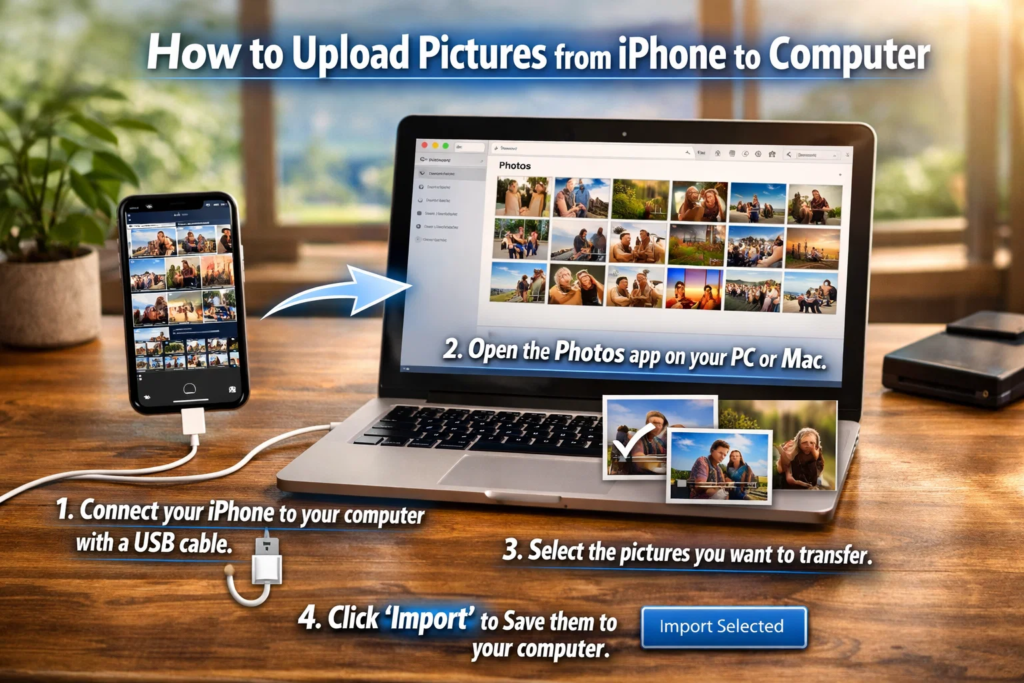
How to upload pictures from iPhone to computer? First, connect your iPhone to your PC using a Lightning cable. Unlock your device and tap “Trust This Computer” if prompted. On your Windows PC, open the Photos app and select Import > From a connected device. The system will automatically detect your phone and display available photos. Choose the images you want and click Import Selected.
Alternatively, you can open File Explorer, locate your iPhone under This PC, and manually copy photos from the DCIM folder. This method gives more control over file organization.
Transferring Photos from iPhone to Mac Using Finder
If you’re using a Mac running macOS Catalina or later, Finder replaces iTunes for device management. This method is seamless and fast.
Connect your iPhone to your Mac using a Lightning cable. Open Finder, and you’ll see your device listed in the sidebar. Click on your iPhone name and navigate to the Photos tab. From here, you can sync and transfer images easily.
For older macOS versions, iTunes handles syncing. Regardless of version, Apple’s ecosystem ensures smooth integration between devices. How to upload pictures from iPhone to computer? Once synced, your photos appear in the Mac’s Photos app, ready for editing or storage.
How to Upload Pictures from iPhone to Computer Using the Photos App on Mac
The built-in Photos app offers another convenient method for Mac users. After connecting your iPhone, open the Photos app. Your device should appear in the left sidebar under Devices.
Click your iPhone, select the photos you wish to transfer, and choose Import Selected or Import All New Items. The process is automatic and organized. Imported photos are neatly categorized by date and event.
How to upload pictures from iPhone to computer? This method is especially helpful for users who prefer a structured photo library rather than manually copying files. It also prevents duplicate imports by tracking previously transferred images.
How to Upload Pictures from iPhone to Computer Wirelessly Using iCloud
How to upload pictures from iPhone to computer? If you prefer a cable-free experience, iCloud provides a seamless wireless solution. First, enable iCloud Photos on your iPhone by going to Settings > [Your Name] > iCloud > Photos and toggling it on.
On your computer, log in to your iCloud account via a web browser or install iCloud for Windows. Once signed in, you can access and download your entire photo library. Any new image taken on your iPhone automatically syncs to your computer.
This method is ideal for users who regularly switch between devices and want real-time synchronization without manual transfers.
Using AirDrop to Transfer Photos to Mac
For Mac users, AirDrop offers a quick and wireless alternative. Ensure both your iPhone and Mac have Wi-Fi and Bluetooth enabled.
Open the Photos app on your iPhone, select the pictures you want to transfer, tap the Share icon, and choose your Mac from the AirDrop list. Accept the transfer on your Mac, and the photos will download instantly.
AirDrop is especially useful for transferring a few images quickly. How to upload pictures from iPhone to computer? However, it may not be ideal for moving thousands of files at once.
How to Upload Pictures from iPhone to Computer Using Email or Cloud Services
How to upload pictures from iPhone to computer? If you only need to transfer a small number of images, email or third-party cloud platforms like Google Drive or Dropbox can work effectively.
Select the photos on your iPhone, tap Share, and choose your preferred platform. Upload the files, then access them from your computer by logging into the same account.
This approach works well for occasional transfers but may be slower for large libraries due to upload time and file size limitations.
Troubleshooting Common Photo Transfer Issues
Sometimes your computer may not recognize your iPhone. How to upload pictures from iPhone to computer? Ensure your Lightning cable is functioning properly and that your device is unlocked. If you don’t see the “Trust This Computer” prompt, disconnect and reconnect the device.
Another common issue involves HEIC file formats. iPhones use HEIC by default to save space. Some Windows PCs may not display these files correctly. You can adjust settings under Settings > Photos > Transfer to Mac or PC and select Automatic to convert files to compatible formats during transfer.
Keeping your iPhone updated with the latest iOS version also helps prevent compatibility problems.
Best Practices for Managing Photos After Transfer
Once you’ve successfully moved your photos, organizing them properly is crucial. Create folders categorized by year, event, or project. Rename files for easier searching.
How to upload pictures from iPhone to computer? Consider backing up your computer to an external hard drive for added protection. Relying on a single storage location increases risk.
If you frequently transfer photos, develop a monthly routine to prevent storage overload. This habit ensures your phone remains optimized and your memories remain secure.
Comparing the Best Methods: Which One Should You Choose?
Choosing the right method depends on your preferences and equipment.
If you want speed and stability, use a USB cable. For automatic syncing across devices, iCloud is ideal. Mac users benefit from AirDrop for quick sharing. Windows users often prefer the Photos app or File Explorer.
Each option has advantages. The key is selecting the method that aligns with your workflow and storage needs. Understanding these differences makes the process smooth and stress-free.
Security and Privacy Considerations
When transferring personal images, privacy matters. Avoid using public computers unless absolutely necessary. Always log out of cloud accounts after downloading files.
Enable two-factor authentication on your Apple ID for enhanced security. This adds protection against unauthorized access.
If your photos contain sensitive information, consider encrypting your backup drive. Maintaining digital safety ensures your cherished memories remain protected from data breaches or accidental exposure.
Conclusion
Understanding how to upload pictures from iPhone to computer empowers you to manage your digital memories effectively. Whether you prefer a wired connection, cloud syncing, or wireless sharing, each method offers reliable solutions tailored to different needs.
Regular photo transfers help free up storage, improve device performance, and create secure backups. With clear steps and proper organization, the process becomes simple and routine. Choose the method that best fits your lifestyle and enjoy peace of mind knowing your photos are safely stored and easily accessible whenever you need them.
Frequently Asked Questions
1. What is the fastest way to transfer photos from iPhone to computer?
Using a USB cable with the Windows Photos app or Mac Finder is typically the fastest and most stable method.
2. Can I transfer photos without a USB cable?
Yes, you can use iCloud, AirDrop (for Mac), email, or cloud storage services for wireless transfers.
3. Why are my photos not showing up on my computer?
Ensure your iPhone is unlocked, you tapped “Trust This Computer,” and your cable is functioning properly.
4. What is the HEIC format?
HEIC is Apple’s default image format that saves storage space. It may need conversion for compatibility with some systems.
5. Does transferring photos delete them from my iPhone?
No, transferring copies photos unless you manually delete them afterward.
6. How often should I back up my iPhone photos?
It’s recommended to back up at least once a month or before major software updates.
For More Update and Stories Visit Daily Guides