
 Admin
Admin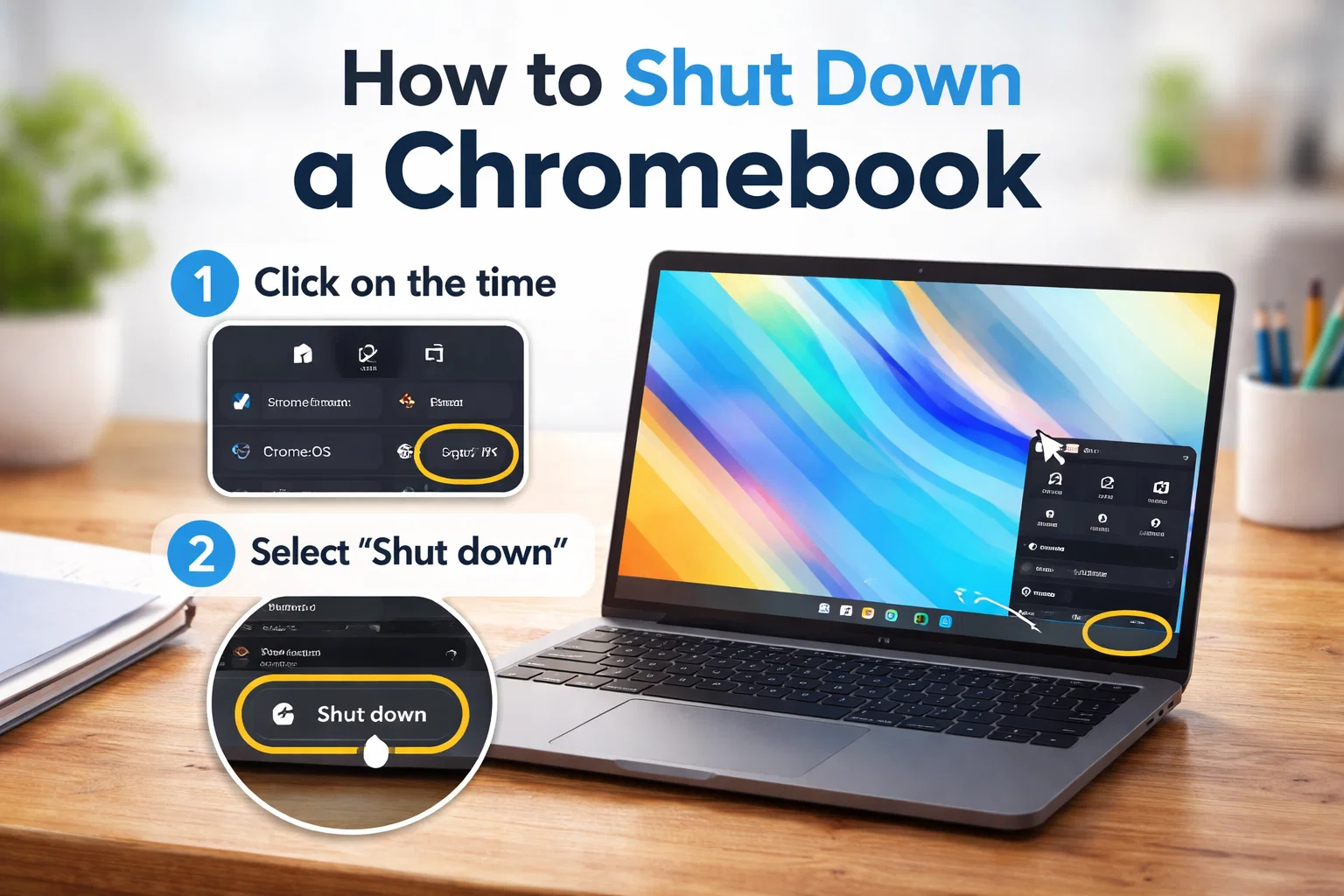
Chromebooks are known for their speed, simplicity, and cloud-based efficiency. Whether you use your device for school, work, or personal browsing, understanding how to shut down Chromebook properly is essential for maintaining performance and battery health. Many users assume simply closing the lid is enough, but that is not always the case.
While Chromebooks run on ChromeOS, which is optimized for quick startup and low power consumption, there are times when a full shutdown is necessary. This detailed guide explains every method available, when to use each one, and how to troubleshoot shutdown problems effectively. By the end, you will feel confident managing your device like a pro.
Why Properly Shutting Down Your Chromebook Matters
Chromebooks are designed for efficiency, but they still benefit from occasional full shutdowns. Unlike sleep mode, shutting down completely closes all processes, clears temporary memory, and resets background tasks. This helps maintain smooth performance over time.
Although ChromeOS updates automatically, a proper shutdown ensures updates install correctly when required. Additionally, How to shut down Chromebook? if your Chromebook feels slow or unresponsive, restarting or powering it off can resolve minor glitches. Taking a few extra seconds to turn off your device properly protects your data and keeps your system running optimally.
The Quickest Method: Using the Power Button
How to shut down Chromebook? The simplest way to power off your Chromebook is by using the physical Power button. On most models, the button is located on the keyboard’s top row or along the device’s side.
Press and hold the Power button for about three seconds. A menu will appear on your screen displaying options such as Shut Down, Sign Out, and Lock. Click Shut Down, and your device will power off completely.
On some newer models, pressing the Power button once may immediately bring up the shutdown option without holding it down. This method is quick, reliable, and ideal for everyday use.
How to Shut Down Chromebook from the Quick Settings Menu
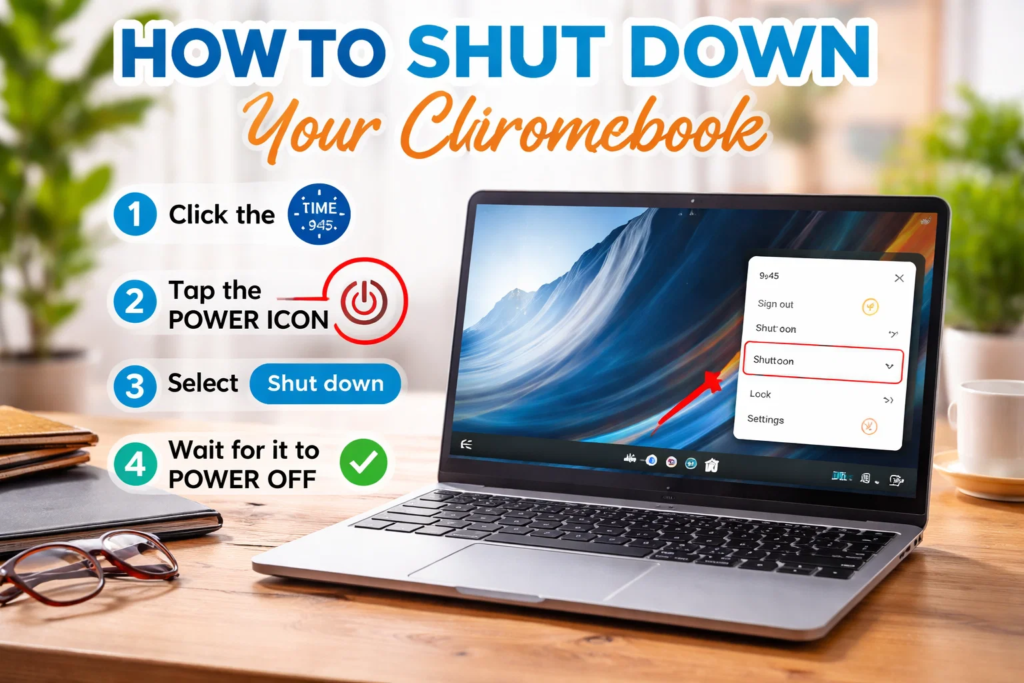
How to shut down Chromebook? Another easy method involves the system tray. In the bottom-right corner of your screen, click the time display. This opens the Quick Settings panel, which shows Wi-Fi, battery level, and other controls.
At the top of this panel, you will see the Power icon. Click it, and your Chromebook will immediately begin the shutdown process. This approach is especially useful if your Power button is not responding or if you prefer navigating through on-screen options.
Using the Quick Settings menu is often the most convenient method for beginners who are still exploring ChromeOS features.
Shutting Down a Chromebook with Keyboard Shortcuts
For users who prefer efficiency, keyboard shortcuts offer a streamlined solution. While ChromeOS does not have a single dedicated shutdown shortcut, you can use the combination of keys to open system options quickly.
How to shut down Chromebook? Press Search + Shift + Q twice to sign out instantly. After signing out, you can click the Shut Down button on the login screen. While not a direct shutdown command, this method reduces navigation steps.
Keyboard-based methods are particularly useful in educational or shared environments where quick sign-outs are common.
Forcing a Shutdown When the Device Is Frozen
Occasionally, your Chromebook may become unresponsive. In such cases, learning how to shut down Chromebook forcefully becomes important.
Press and hold the Power button for at least 10 seconds until the screen turns black. This action forces the device to power off completely. While effective, this method should only be used when necessary, as abrupt shutdowns can interrupt unsaved tasks.
If freezing happens frequently, consider checking for system updates or clearing unused extensions. Regular maintenance prevents repeated crashes.
Difference Between Sleep Mode and Full Shutdown
Many users rely on closing the lid to conserve battery. When you close the lid, your Chromebook enters sleep mode rather than turning off completely.
Sleep mode uses minimal power and allows instant wake-up. How to shut down Chromebook? However, background processes may still run. A full shutdown, on the other hand, closes all applications and clears temporary data.
For short breaks, sleep mode is convenient. For extended periods of inactivity, especially overnight or during travel, powering off fully is recommended to preserve battery life and improve long-term performance.
How to Restart Instead of Shut Down
How to shut down Chromebook? Sometimes restarting is more effective than shutting down completely. Restarting clears temporary files and reloads the operating system.
To restart, click the time in the bottom-right corner, open the Quick Settings menu, and select the Restart option if available. If not visible, simply shut down and then press the Power button to turn it back on.
Restarting is especially helpful after installing updates or troubleshooting performance issues.
Shutting Down a School or Managed Chromebook
How to shut down Chromebook? If you are using a school-issued or managed device, certain settings may be restricted by administrators. However, the shutdown process remains the same.
Click the time display, select the Power icon, and allow the device to power off. Administrative policies typically control apps and extensions rather than basic power functions.
If you encounter limitations, contact your IT department for guidance. Managed Chromebooks are designed for consistent security and compliance with institutional policies.
Battery Health and Power Management Tips
How to shut down Chromebook? Proper shutdown habits contribute to better battery health. Lithium-ion batteries perform best when not constantly drained to zero.
Shutting down occasionally allows the system to recalibrate battery readings. Avoid leaving your Chromebook plugged in continuously at 100 percent for extended periods. Balanced usage improves longevity.
Additionally, reducing screen brightness and disabling unused Bluetooth connections conserves energy, minimizing the need for frequent shutdown cycles.
Updating ChromeOS Before Shutdown
ChromeOS updates automatically in the background. However, some updates require a restart or shutdown to finalize installation.
To check for updates, go to Settings > About ChromeOS > Check for Updates. If an update is pending, complete it before shutting down to ensure your system remains secure and optimized.
Keeping your Chromebook updated enhances security and performance. How to shut down Chromebook? Updates often include bug fixes and improved system stability.
Troubleshooting Common Shutdown Problems
How to shut down Chromebook? If your Chromebook does not turn off properly, several factors may be responsible. A malfunctioning Power button, outdated software, or a frozen app can interfere with shutdown processes.
Start by updating ChromeOS. If problems persist, perform a hard reset by pressing Refresh + Power simultaneously. This resets hardware components without deleting data.
If the issue continues, consider contacting the manufacturer’s support team. Persistent power issues may indicate hardware concerns.
When Should You Fully Shut Down Your Chromebook?
Knowing when to power off completely improves efficiency. Shut down your device before traveling, storing it for several days, or performing maintenance.
If performance slows or applications behave unpredictably, a full shutdown often resolves minor glitches. Additionally, after major updates, powering off ensures system stability.
While Chromebooks are built for quick start-and-stop usage, occasional full shutdowns support long-term reliability.
Conclusion
Understanding how to shut down Chromebook correctly ensures smooth performance, extended battery life, and secure operation. Whether you use the Power button, Quick Settings menu, or keyboard shortcuts, each method offers simplicity and reliability.
While closing the lid activates sleep mode, a full shutdown clears processes and supports system health. By adopting proper shutdown habits and staying updated with ChromeOS, you maintain optimal functionality. With these clear steps and practical tips, you can confidently manage your Chromebook’s power settings and prevent unnecessary technical issues.
Frequently Asked Questions
1. Is closing the lid the same as shutting down?
No, closing the lid puts your Chromebook into sleep mode, not a full shutdown.
2. How often should I shut down my Chromebook?
A full shutdown once every few days or after updates is generally sufficient.
3. What should I do if my Chromebook won’t turn off?
Hold the Power button for 10 seconds to force shutdown, then check for updates.
4. Does shutting down save battery life?
Yes, a full shutdown conserves more battery than sleep mode during long periods of inactivity.
5. Will I lose data if I force shutdown?
You may lose unsaved work, so use force shutdown only when necessary.
6. Can I schedule automatic shutdown on Chromebook?
ChromeOS does not include a built-in scheduling feature, but third-party extensions may help.
For More Update and Stories Visit Daily Guides