 Admin
Admin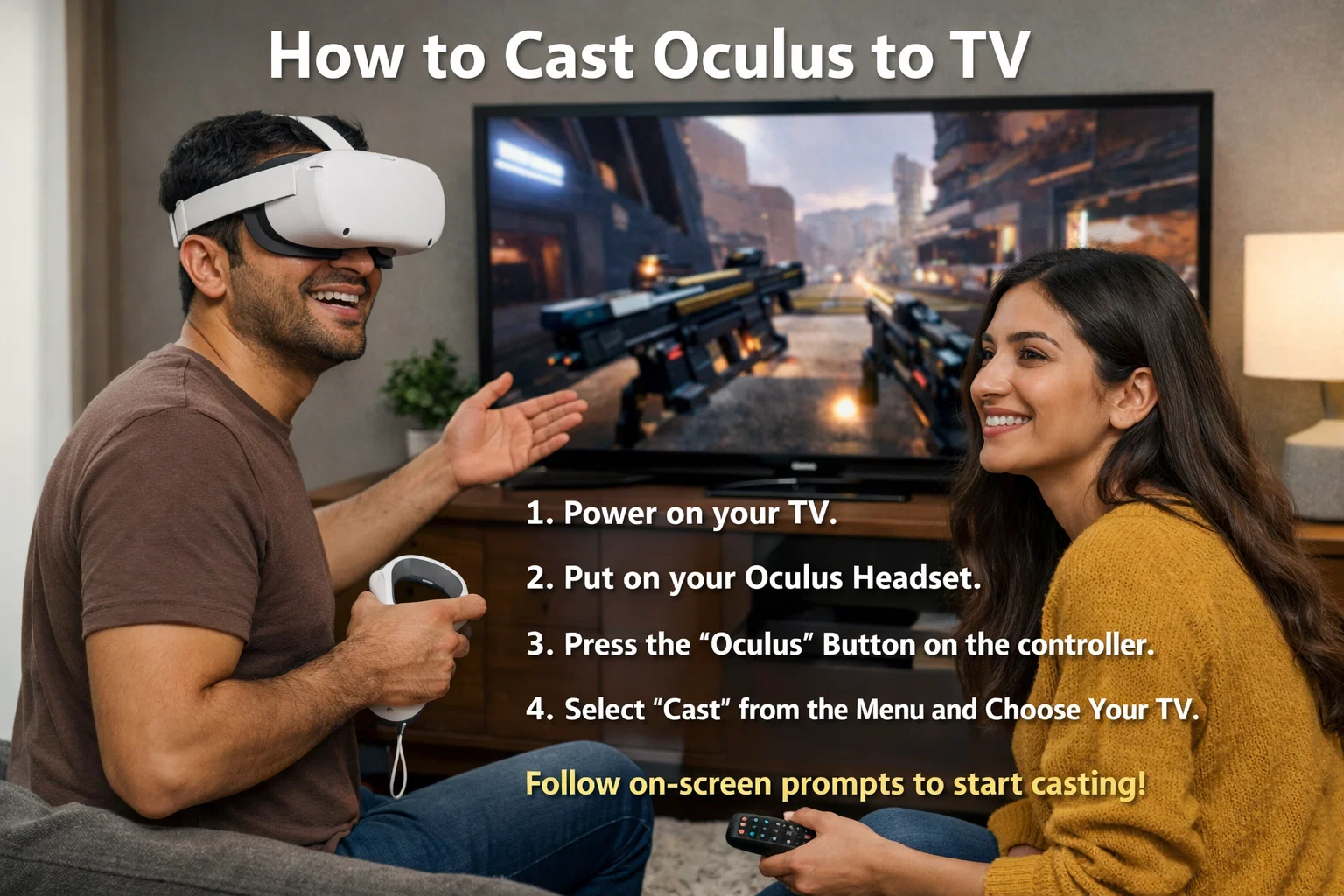
Virtual reality has transformed how people experience games, entertainment, and immersive environments. However, watching someone inside a headset can feel isolating for others in the room. That is why learning how to cast Oculus to TV is such a valuable skill. Casting allows friends and family to view the VR experience live on a larger screen, making it more interactive and enjoyable. Whether you want to showcase gameplay, guide a new user, or record content, casting enhances the experience. Modern VR systems, especially those developed by Meta Platforms, include built-in casting features that make the process easier than ever. Understanding the correct setup ensures smooth, high-quality streaming without technical frustration.
Understanding Oculus Casting and How It Works
Casting is a wireless feature that mirrors your VR headset display onto another device such as a television, smartphone, or computer. This allows others to see exactly what the user sees in real time. The headset sends video data over Wi-Fi to the selected device, which then displays it on the screen. This process is similar to screen mirroring used on smartphones and tablets. Learning how to cast Oculus to TV helps improve social interaction during VR sessions. Instead of one person experiencing the virtual world alone, everyone can participate. This makes VR more engaging, especially during multiplayer games, demonstrations, or group entertainment settings.
Why Casting Oculus to TV Improves Your VR Experience
How to cast Oculus to TV? Casting enhances both entertainment and practical use. When you share your VR screen on a television, others can guide the player or enjoy watching the experience. This is especially useful for beginners who need assistance navigating menus or gameplay. It also makes VR sessions more social and interactive. Families and friends can watch reactions and participate in decision-making. For content creators, casting allows easy recording or streaming. Understanding how to cast Oculus to TV transforms virtual reality into a shared experience rather than an isolated one. This simple feature increases accessibility and makes VR more enjoyable for everyone involved.
Devices Compatible with Oculus Casting
Most modern VR headsets support casting features. Popular models include the Meta Quest 2 and Meta Quest 3, which offer built-in wireless streaming capabilities. These devices can connect to smart TVs, streaming devices, and mobile phones. Compatibility depends on having a stable Wi-Fi connection and supported hardware. Smart TVs from Samsung, LG, and Sony often support casting directly or through streaming devices. Understanding how to cast Oculus to TV compatibility ensures you can connect without technical issues. Choosing the right equipment improves casting quality and reliability, creating a smooth viewing experience.
Basic Requirements Before Casting
Before starting, ensure your headset and television are connected to the same Wi-Fi network. This is essential for proper communication between devices. A stable internet connection improves video quality and reduces delays. Make sure your headset is fully charged or connected to power. Install the latest software updates to avoid compatibility issues. Learning how to cast Oculus to TV also requires enabling casting permissions on your headset. These simple preparations prevent interruptions and ensure smooth performance. Proper setup improves reliability and helps avoid common technical problems during casting.
How to Cast Oculus to TV Using Built-In Casting Feature
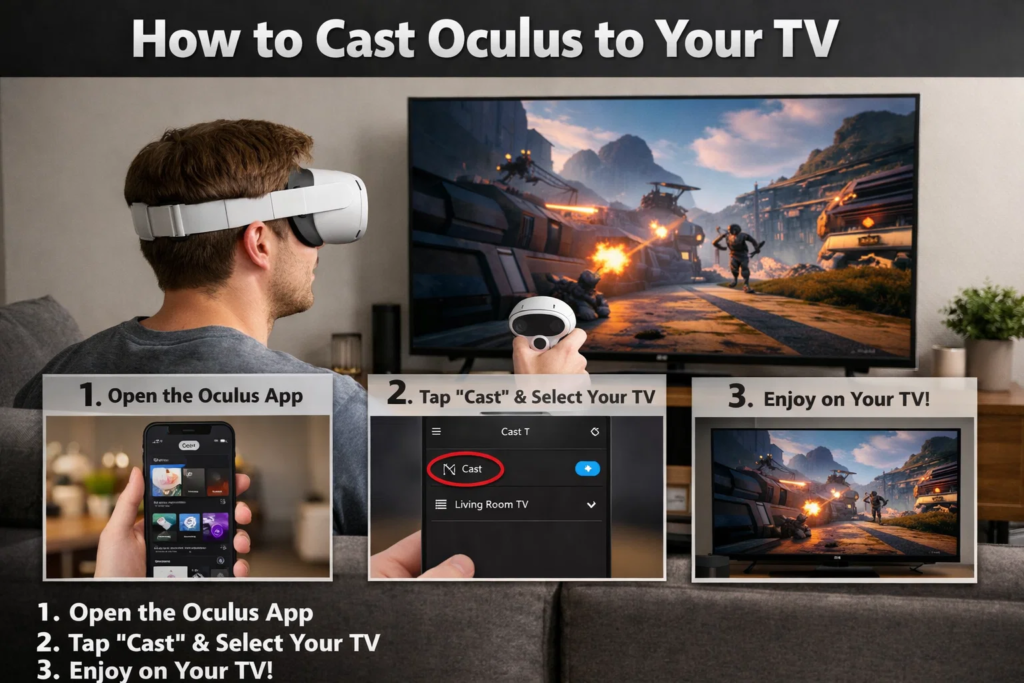
The headset includes a built-in casting feature designed for ease of use. Start by turning on your headset and television. Open the quick settings menu inside the VR interface. Select the casting option and choose your television from the available device list. Confirm your selection, and the VR display will appear on your TV. This process usually takes only a few seconds. Learning how to cast Oculus to TV using the built-in feature is the fastest and most convenient method. It requires no additional equipment and provides reliable performance when properly configured.
Step-by-Step Instructions from the Headset
First, wear your headset and press the menu button on your controller. Navigate to the quick settings panel and locate the casting option. Select it and view the list of available devices. Choose your television or streaming device from the list. Confirm your choice, and casting will begin immediately. This direct method is efficient and simple. Understanding this process ensures you can start casting quickly whenever needed. It is especially useful for demonstrations, gaming sessions, and sharing experiences with others.
How to Cast Oculus to TV Using Mobile App
The mobile app provides another convenient way to manage casting. Install the Meta Quest app on your smartphone and connect it to your headset. Open the app and select your headset from the device list. Tap the casting button and choose your television as the destination. Confirm your selection to begin streaming. This method is helpful when you want more control over casting settings. Learning how to cast Oculus to TV using the mobile app offers flexibility and convenience. It also allows easier troubleshooting if problems occur.
Casting Using Chromecast Devices
Streaming devices provide additional compatibility options. Devices like Chromecast allow casting to televisions that do not have built-in casting support. Connect the Chromecast device to your TV and ensure it is connected to Wi-Fi. Select the Chromecast device from the casting menu in your headset or mobile app. The VR display will appear on your TV. Chromecast devices, developed by Google, are widely compatible and easy to use. Understanding this method ensures you can cast even on older televisions without native casting support.
How to Cast Oculus to TV Using a Computer Browser
Casting can also be done through a computer browser. Open a supported browser and access the casting page. Connect your headset and select the computer as the casting destination. Then connect your computer to your TV using an HDMI cable. This method provides reliable casting quality. Learning how to cast Oculus to TV through a computer offers flexibility and additional control. It is especially useful for recording gameplay or presentations. This approach ensures compatibility with a wide range of televisions.
Improving Casting Quality and Performance
Video quality depends on network speed and device performance. Use a strong Wi-Fi signal for the best results. Position your router close to your devices to reduce interference. Avoid network congestion caused by multiple connected devices. Updating software ensures optimal performance. Learning how to cast Oculus to TV includes optimizing network settings. These improvements reduce lag and enhance video clarity. Proper network configuration ensures smooth and enjoyable casting experiences.
Fixing Common Casting Problems
Sometimes casting may fail due to connection or compatibility issues. Restart your headset, television, and router to reset connections. Ensure both devices are on the same network. Update software on all devices. Check casting permissions in headset settings. Understanding how to cast Oculus to TV includes troubleshooting common problems. These solutions resolve most issues quickly and effectively.
Privacy and Security Considerations
Casting shares your screen with others, so ensure you trust your viewing audience. Avoid displaying sensitive information while casting. Disconnect casting when finished. These precautions protect your privacy. Understanding casting security ensures safe use.
Benefits for Gaming and Social Interaction
Casting improves multiplayer gaming experiences. Friends can watch gameplay and provide guidance. This enhances entertainment value. Learning how to cast Oculus to TV makes VR more social. It improves engagement and enjoyment.
Benefits for Content Creators and Streamers
Content creators use casting to record gameplay videos. This helps produce tutorials and live streams. Casting simplifies content creation. It improves production quality and audience engagement.
Many VR innovations were driven by leaders like Mark Zuckerberg, who emphasized making VR more social and connected. Casting reflects this vision by allowing shared experiences.
Future of VR Casting Technology
Casting technology continues improving. Future systems will offer better quality and lower latency. Understanding casting ensures readiness for new advancements.
Conclusion
Learning how to cast Oculus to TV transforms virtual reality into a shared, interactive experience. It allows friends, family, and audiences to watch and participate in immersive environments. Whether using built-in casting, mobile apps, Chromecast, or computers, the process is simple and effective. Proper setup, strong Wi-Fi, and compatible devices ensure smooth performance. Casting enhances gaming, teaching, and entertainment while improving accessibility. With continuous improvements in VR technology, casting will become even more seamless. By mastering these methods, users can fully enjoy and share their VR experiences with others confidently and easily.
Frequently Asked Questions (FAQs)
1. Can I cast Oculus to any TV?
You can cast to most smart TVs or TVs connected to Chromecast or compatible streaming devices. Compatibility depends on Wi-Fi and casting support.
2. Do I need internet to cast Oculus to TV?
Yes, both devices must be connected to the same Wi-Fi network. Internet access ensures proper communication and streaming.
3. Why is my Oculus not casting to TV?
This usually happens due to network issues, outdated software, or incompatible devices. Restarting devices and updating software often resolves the problem.
4. Does casting reduce headset performance?
Casting may slightly increase resource usage, but modern headsets handle casting efficiently without major performance issues.
5. Can I cast Oculus without Chromecast?
Yes, many smart TVs support casting directly. You can also cast using a mobile app or computer browser.
6. Is casting Oculus to TV free?
Yes, casting is a built-in feature and does not require additional payment unless you need extra hardware like Chromecast.
7. Can multiple people watch Oculus casting?
Yes, anyone viewing the connected TV can watch the VR experience simultaneously, making it ideal for group entertainment.
For More Update and Stories Visit Daily Guides