
 Admin
Admin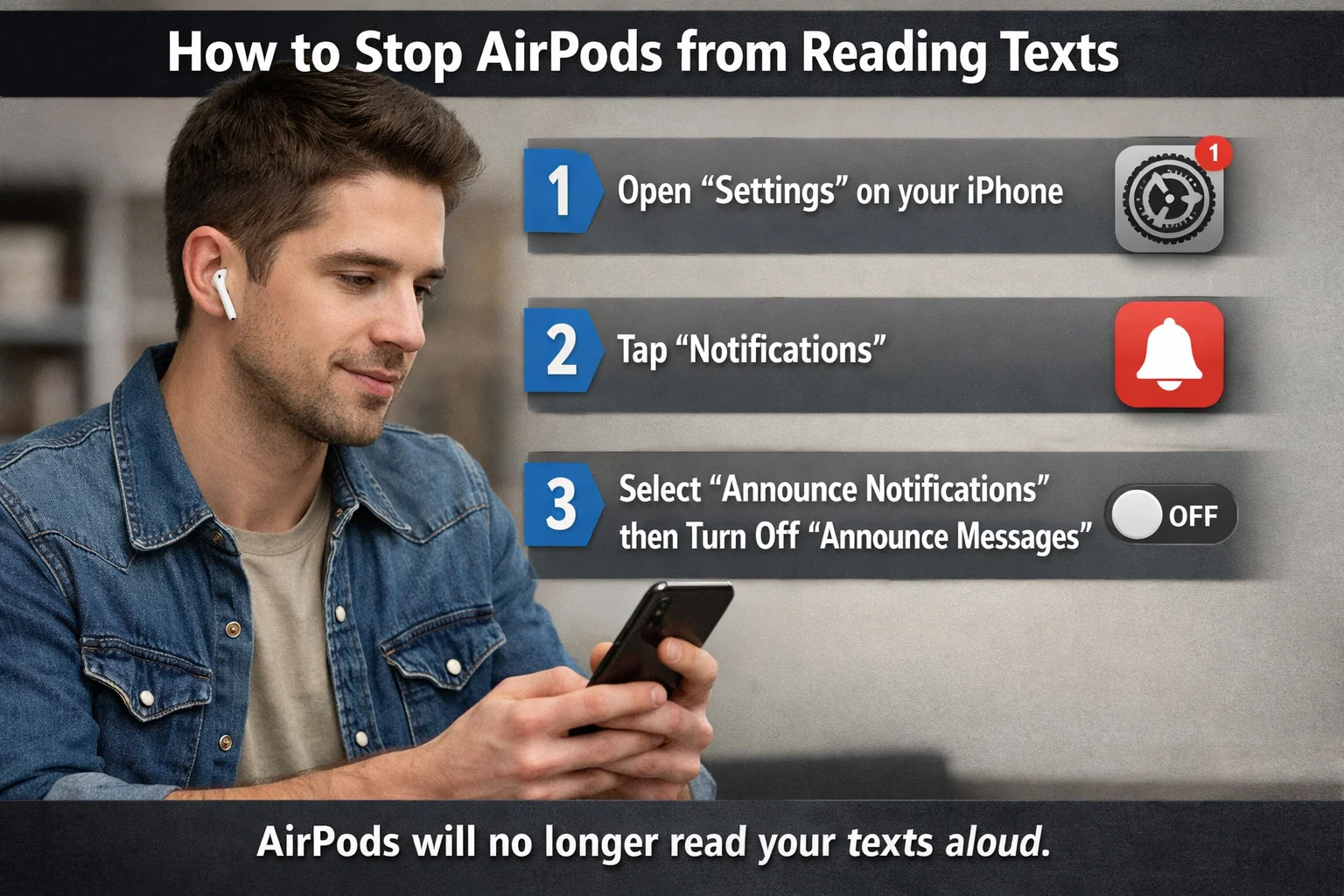
AirPods are designed to make communication easier, faster, and hands-free. One of their most useful features is the ability to announce incoming messages automatically using Siri. While this can be convenient, many users find it distracting, especially when working, studying, or in quiet environments. If your earbuds suddenly interrupt your music to read texts aloud, you may want to regain control of your notifications. Learning how to stop AirPods from reading texts is simple once you understand the settings involved. This guide explains everything in detail, from basic fixes to advanced customization, so you can enjoy your listening experience without unexpected interruptions.
AirPods are developed by Apple Inc. and integrate deeply with the iPhone, iOS, and Siri, which is why message announcements work automatically. Fortunately, Apple also gives users full control over these features. By adjusting a few settings, you can disable or customize message announcements according to your personal preference.
Why AirPods Read Your Messages Automatically
AirPods read messages aloud because of a built-in feature called Announce Notifications. This feature allows Siri to automatically speak incoming texts, reminders, and alerts while you are wearing compatible headphones. It was introduced in iOS 13 and improved in later versions to support more apps and smarter controls. The purpose is to help users stay informed without looking at their phone, which is especially useful during workouts, driving, or multitasking.
However, the feature can become inconvenient if you receive frequent messages. Siri interrupts your audio, pauses music, and reads every notification aloud. Many users do not realize this feature is enabled by default during setup. Understanding how to stop AirPods from reading texts and how this system works is the first step toward managing it effectively and preventing unwanted interruptions during your daily routine.
Understanding the Announce Notifications Feature
Before you learn how to stop AirPods from reading texts, it helps to understand how the system works. Announce Notifications is powered by Siri and operates when your AirPods are connected and worn. Siri detects incoming messages and reads the sender’s name and message content aloud. You can even reply without touching your phone, making it a powerful hands-free tool.
How to stop AirPods from reading texts? This feature supports Apple apps like Messages, as well as third-party apps such as messaging platforms and reminders. It also works through the Control Center and can be customized based on your needs. The system is intelligent enough to stop announcing when you remove one AirPod. While useful, it can feel intrusive if you prefer privacy or uninterrupted listening, which is why disabling it becomes important.
How to Stop AirPods from Reading Texts Using iPhone Settings
The most reliable way to control message announcements is through your iPhone’s Settings app. Apple has placed the controls in a simple and accessible location. How to stop AirPods from reading texts? Once you disable the right option, Siri will stop reading texts through your AirPods immediately. This method works on all modern AirPods models, including AirPods Pro, AirPods 2nd generation, and newer versions.
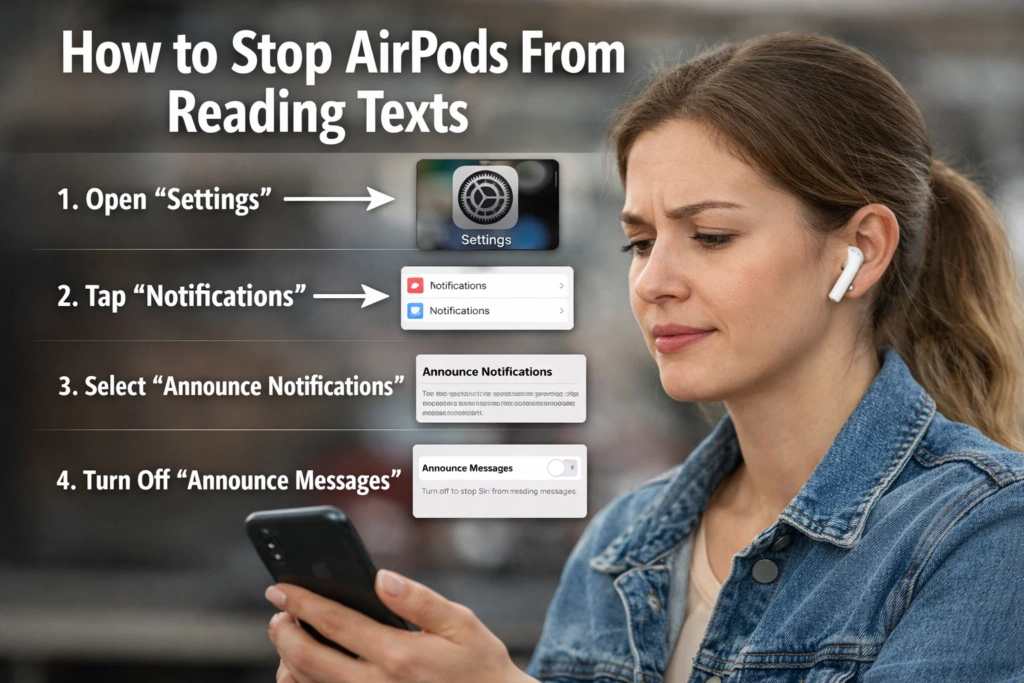
Changing this setting does not affect your ability to receive notifications. Instead, it only prevents Siri from announcing them aloud. You can still view messages normally on your phone screen. This gives you the freedom to check notifications when you want, without unexpected audio interruptions during music, calls, or videos.
Method 1: Turn Off Announce Notifications Completely
The fastest solution is to turn off the Announce Notifications feature entirely. Start by opening your iPhone and going to Settings. Scroll down and tap Notifications, then select Announce Notifications. You will see a toggle switch at the top of the screen. Turn this switch off to disable announcements for all supported devices, including AirPods.
How to stop AirPods from reading texts? Once disabled, Siri will no longer read incoming texts aloud. Your AirPods will continue working normally for music, calls, and other audio. This method is ideal for users who want complete silence and no interruptions. It is also the most recommended option if you receive frequent messages throughout the day and prefer checking them manually instead.
Method 2: Disable Announcements for Messages Only
How to stop AirPods from reading texts? If you still want announcements for certain apps but not text messages, you can customize the settings. Go to Settings, tap Notifications, then tap Announce Notifications. Scroll down to the list of apps and select Messages. Turn off the toggle for that specific app.
This prevents Siri from reading text messages while still allowing announcements from other important apps, such as reminders or calls. This option provides a balanced approach, giving you control over which notifications are spoken. It is especially helpful if you rely on certain alerts but want privacy for personal conversations.
Method 3: Disable Announcements Through Siri Settings
How to stop AirPods from reading texts? Another effective way to manage this feature is through Siri settings. Open Settings, then tap Siri & Search. Look for notification-related options connected to Siri. From there, you can adjust how Siri interacts with notifications and audio devices.
By reducing Siri’s notification permissions, you can prevent automatic announcements. This method is useful for users who want deeper control over voice assistant behavior. It also improves privacy by limiting how much information Siri reads aloud. Once adjusted, your AirPods will function without unwanted message interruptions.
How to Stop AirPods from Reading Texts Using Control Center
The Control Center offers a quick and convenient way to disable announcements without navigating through multiple settings menus. Swipe down from the top-right corner of your iPhone screen to open Control Center. Look for the Announce Notifications icon, which usually appears as a bell symbol.
How to stop AirPods from reading texts? Tap the icon to turn off announcements instantly. This method is ideal for temporary situations, such as meetings or study sessions. It allows you to quickly control announcements without permanently changing your settings. Many users prefer this option because it provides fast access and immediate results without complicated steps.
How to Stop AirPods from Reading Texts While Driving or Using CarPlay
AirPods announcements can also activate while driving, especially if Driving Focus Mode or related features are enabled. These settings are designed to improve safety by allowing hands-free communication. However, they may cause unexpected message announcements during your commute.
To fix this, open Settings, tap Focus, then select Driving. Look for notification announcement options and disable them. This prevents Siri from reading messages while driving. You can still receive notifications silently and check them later. Adjusting focus settings ensures how to stop AirPods from reading texts a safer and more controlled listening experience.
How to Customize Announcements Instead of Turning Them Off Completely
You may not want to disable announcements entirely. Instead, Apple allows you to customize how and when Siri announces messages. This flexibility helps you balance convenience and privacy. By selecting specific apps or conditions, you can control the experience without losing useful features.
How to stop AirPods from reading texts? Customization is helpful for users who rely on notifications for work or urgent communication. Instead of turning everything off, you can fine-tune settings to match your daily routine. This ensures that important alerts reach you while unnecessary interruptions remain silent.
Allow Announcements from Important Contacts Only
One useful option is allowing announcements only from specific contacts. Open Settings, tap Notifications, then select Announce Notifications. Choose the Messages app and adjust settings to allow announcements from favorites or priority contacts only.
How to stop AirPods from reading texts? This ensures you receive important messages while avoiding distractions from less urgent conversations. It is especially useful for professionals who need alerts from coworkers or family members. By limiting announcements to essential contacts, you maintain both productivity and peace of mind.
Use Focus Mode to Control Announcements Automatically
Focus Mode allows your iPhone to manage notifications based on your activity. You can create modes such as Work, Sleep, or Personal. Each mode can control which notifications are allowed and how they are delivered.
How to stop AirPods from reading texts? When Focus Mode is active, Siri follows the rules you set. This prevents unwanted message announcements during important moments. It is a powerful tool for maintaining concentration and avoiding interruptions. Many users find this feature more flexible than completely disabling announcements.
How to Stop AirPods from Reading Texts on Apple Watch
If you use an Apple Watch, message announcements may also sync between devices. This can cause AirPods to read messages even after adjusting iPhone settings. To fix this, open the Watch app on your iPhone and go to Notifications.
Look for announcement settings and disable them for messages. This prevents your watch from triggering AirPods announcements. Synchronization between devices is helpful, but it can also cause confusion if settings are not aligned. Ensuring how to stop AirPods from reading texts consistency across devices prevents unexpected behavior.
How to Stop AirPods from Reading Texts from Third-Party Apps
AirPods announcements are not limited to Apple’s Messages app. They can also read notifications from apps like WhatsApp, Messenger, or other messaging platforms. This happens because these apps support Siri announcement integration.
How to stop AirPods from reading texts? To disable announcements for specific apps, go to Settings, tap Notifications, then tap Announce Notifications. Select the third-party app and turn off announcements. This ensures Siri does not read messages from those apps aloud. Customizing app-specific settings provides precise control over your notification experience.
Troubleshooting: AirPods Still Reading Messages?
Sometimes AirPods continue announcing messages even after adjusting settings. How to stop AirPods from reading texts? This usually happens due to software glitches or incomplete configuration. Fortunately, there are simple solutions to fix this issue and restore normal behavior.
Check Your iOS Version
How to stop AirPods from reading texts? Outdated software can cause unexpected behavior. Go to Settings, tap General, then select Software Update. Install the latest iOS version if available. Updates often fix bugs related to notifications and AirPods functionality. Keeping your device updated ensures smooth performance and accurate settings behavior.
Reset AirPods Settings
Resetting AirPods can fix persistent issues. Place them in their case, press and hold the setup button, and reconnect them to your iPhone. This refreshes the connection and resolves announcement glitches. Resetting is safe and does not damage your device.
Restart Your iPhone
Restarting your iPhone refreshes system processes and fixes minor bugs. Turn off your phone, wait a few seconds, and turn it back on. This simple step often resolves notification problems and restores normal AirPods behavior.
Benefits of Turning Off Message Announcements
How to stop AirPods from reading texts? Disabling announcements offers several advantages. First, it improves privacy by preventing others from hearing your messages. This is especially important in public or professional settings. Second, it reduces distractions and allows uninterrupted listening.
Third, it gives you full control over when and how you check notifications. Instead of reacting immediately, you can review messages at your convenience. This improves productivity and reduces stress. Many users prefer silent notifications because they create a more peaceful and focused environment.
When You Should Keep Announce Notifications Enabled
How to stop AirPods from reading texts? Although many users want to disable announcements, the feature can still be useful. It helps during workouts, driving, or multitasking. Hands-free communication improves safety and convenience. You can stay informed without checking your phone.
For users with accessibility needs, announcements provide essential support. Siri ensures you never miss important messages. The key is to customize the feature according to your needs. This ensures the best balance between convenience and control.
Conclusion
Understanding how to stop AirPods from reading texts empowers you to take control of your listening experience. The Announce Notifications feature is useful, but it can become distracting if not configured properly. By adjusting settings in Notifications, Siri, Control Center, and Focus Mode, you can prevent unwanted interruptions and maintain privacy.
Apple provides flexible options, allowing you to disable announcements completely or customize them for specific apps and contacts. Troubleshooting steps like updating iOS or resetting AirPods can resolve persistent issues. Ultimately, managing announcement settings ensures a smoother, quieter, and more enjoyable experience with your AirPods. With the right configuration, you can enjoy music, calls, and notifications exactly the way you prefer.
FAQs
1. Why do my AirPods read messages automatically?
Your AirPods read messages because of the Announce Notifications feature powered by Siri. This feature is enabled in notification settings and allows Siri to read messages aloud when AirPods are connected. It helps with hands-free communication but can feel intrusive if you receive frequent messages. The feature works automatically once enabled, which is why many users are surprised when messages are announced. Disabling or customizing Announce Notifications in your iPhone settings will stop this behavior and give you full control over how notifications are delivered.
2. Will turning off announce notifications affect my normal notifications?
No, turning off Announce Notifications only stops Siri from reading messages aloud. Your notifications will still appear on your iPhone screen as usual. You will continue receiving alerts silently without voice announcements. This means you can still check messages whenever you want, without missing important information. The only difference is that AirPods will no longer interrupt your audio to read texts. This makes it a safe and effective way to reduce distractions without losing access to notifications.
3. Can I stop AirPods from reading texts without disabling Siri completely?
Yes, you can stop message announcements without disabling Siri. Simply turn off the Announce Notifications feature in your notification settings. Siri will still work for voice commands, calls, reminders, and other functions. This allows you to keep Siri’s benefits while preventing unwanted message announcements. You do not need to disable the voice assistant entirely. Adjusting notification settings provides the perfect balance between functionality and privacy.
4. Why are my AirPods still reading messages after turning off settings?
This usually happens due to software glitches, outdated iOS versions, or syncing issues between devices. Restarting your iPhone, resetting AirPods, or updating iOS often resolves the problem. Also, check Focus Mode and Apple Watch settings to ensure announcements are disabled everywhere. Sometimes multiple settings interact, which can cause announcements to continue. Ensuring all related options are disabled will permanently fix the issue.
5. Can I allow announcements only for certain contacts?
Yes, Apple allows you to customize announcements for specific contacts. You can enable announcements only for favorite or priority contacts in the Messages notification settings. This ensures you receive important alerts while avoiding unnecessary interruptions. It is a useful feature for professionals or users who need to stay available for urgent communication. Customizing contact-based announcements gives you better control over your notification experience.
6. Do AirPods read messages from apps like WhatsApp?
Yes, AirPods can read messages from third-party apps that support Siri announcements, including WhatsApp and similar messaging apps. This happens when Announce Notifications is enabled for those apps. You can disable announcements individually for each app in notification settings. This ensures Siri only reads messages from apps you allow. Controlling app-specific settings improves privacy and prevents unwanted announcements.
For More Update and Stories Visit Daily Guides