
 Admin
Admin
The screen reader feature on Roku is designed to help users navigate menus through spoken instructions. While this accessibility tool is extremely useful for people with visual impairments, it can be frustrating if it activates unexpectedly. Many users become confused when their device suddenly starts speaking every menu option, channel name, or setting aloud. Fortunately, disabling this feature is simple once you understand where to find the correct settings. This detailed guide explains how to turn off screen reader on Roku, why it turns on, and how to prevent it from activating again. Whether you use a Roku streaming stick, box, or smart TV, these instructions will help you regain full control of your viewing experience quickly and safely.
What Is Roku Screen Reader and Why It Turns On
The Roku screen reader, also called the Audio Guide, is an accessibility feature built into devices created by Roku. Its primary purpose is to help users who have vision difficulties by reading aloud menus, options, and settings. This feature improves accessibility and ensures everyone can use Roku devices independently and comfortably. However, many users activate it accidentally without realizing it. This often happens when pressing certain remote shortcuts or adjusting accessibility settings unknowingly. Because the feature speaks continuously while navigating, it can disrupt normal viewing. Understanding how to turn off screen reader on Roku, why the Audio Guide turns on helps you disable it confidently and avoid activating it unintentionally in the future.
Signs That Screen Reader Is Enabled on Your Roku
Recognizing when the screen reader is active helps you address the issue immediately. The most obvious sign is a voice narrating menu options, channel names, and settings selections as you navigate through the interface. For example, when you scroll through apps or open settings, the device will verbally announce each item. Another sign is hearing confirmation messages like “Home selected” or “Settings menu opened.” The voice may sound robotic and consistent across all menus. This feature activates system-wide, not just within specific apps. Once enabled, it continues until manually turned off. Knowing these signs ensures you can quickly identify when you need to follow instructions for how to turn off screen reader on Roku devices.
Quick Method: Use Remote Shortcut to Disable Audio Guide
How to turn off screen reader on Roku? The fastest way to disable the screen reader is by using a built-in remote shortcut. Roku includes this convenient feature to help users turn accessibility tools on or off instantly. Simply press the asterisk (*) button on your Roku remote four times in quick succession. This button is also called the Options button and is located below the directional pad on most remotes. After pressing it four times, the Audio Guide will announce that it is turning off. This shortcut works on most Roku models and Roku TVs. It is the quickest solution for users who need immediate relief from voice narration without navigating through multiple menus or settings options manually.
How to Turn Off Screen Reader on Roku Using Settings Menu
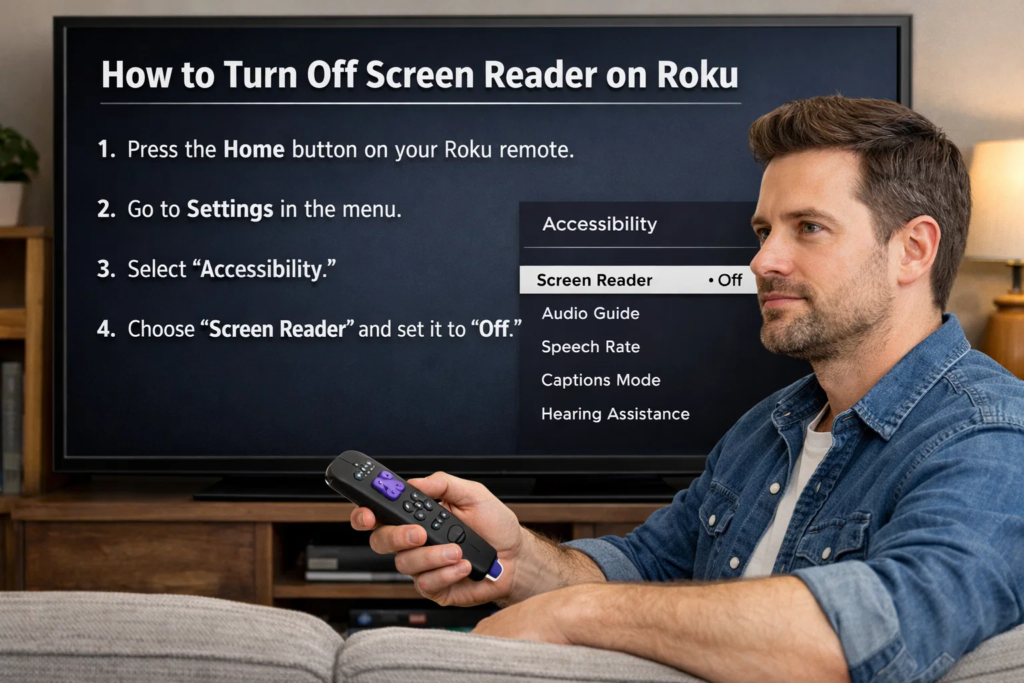
If the shortcut method does not work or you prefer manual control, you can disable the Audio Guide through the settings menu. This approach provides a more permanent solution and allows you to adjust accessibility preferences carefully. The settings menu contains all system features, including accessibility options, display preferences, and network settings. By accessing this menu, you can ensure the screen reader remains disabled. This method works on Roku streaming devices, Roku sticks, and Roku TVs. It also allows you to explore additional accessibility features. Following the steps below ensures you understand how to turn off screen reader on Roku correctly and prevent unwanted narration interruptions.
Step 1: Open Settings
Start by pressing the Home button on your Roku remote, which takes you to the main screen. How to turn off screen reader on Roku? From there, use the directional arrows to scroll through the menu until you find the Settings option. Select it by pressing the OK button. The Settings menu contains various system options, including display, network, accessibility, and system controls. This is the central control panel for your device. Accessing this section is essential for managing accessibility features. Even if the screen reader is currently active, it will announce each option as you navigate. Continue following the spoken instructions and visual interface until you reach the accessibility section.
Step 2: Select Accessibility
How to turn off screen reader on Roku? Inside the Settings menu, scroll down until you see the Accessibility option. This section contains features designed to help users with hearing, vision, and navigation needs. Select Accessibility using your remote control. Once inside, you will see options such as Audio Guide, Captions, and other accessibility tools. The Audio Guide setting controls whether the screen reader is on or off. This section allows you to customize your accessibility preferences completely. Selecting Accessibility ensures you can control voice narration directly. It also helps you understand how accessibility features work together to improve usability and user comfort on Roku devices.
Step 3: Turn Off Audio Guide
How to turn off screen reader on Roku? After entering the Accessibility section, locate the Audio Guide option. Select it to open its settings. You will see choices such as On, Off, or Shortcut Enabled. Choose Off to disable the screen reader completely. Once selected, the voice narration will stop immediately. This confirms the feature is disabled successfully. Turning off Audio Guide ensures your Roku device operates silently without voice assistance. You can always re-enable it later if needed. Completing this step finalizes the process of how to turn off screen reader on Roku using manual settings and gives you full control over accessibility features.
How to Disable Screen Reader on Roku TV Models
How to turn off screen reader on Roku? Roku TVs integrate the same operating system directly into smart televisions manufactured by brands like TCL and Hisense. The process for disabling the screen reader on these TVs is almost identical to standalone Roku devices. Use your TV remote to access the Home screen, open Settings, and navigate to Accessibility. Then select Audio Guide and turn it off. Some Roku TVs also include voice assistants and additional accessibility tools. However, the Audio Guide option remains in the same location. This consistency ensures users can manage accessibility settings easily regardless of device type or brand manufacturer.
Using the Roku Mobile App to Turn Off Audio Guide
The Roku mobile app provides another convenient way to control your device remotely. This app works as a virtual remote and includes full navigation controls. How to turn off screen reader on Roku? If your physical remote is unavailable, you can open the app, connect to your Roku device, and access the Settings menu. From there, navigate to Accessibility and disable the Audio Guide option. This method is especially helpful if the screen reader activates unexpectedly and you cannot locate your remote quickly. The mobile app ensures you always have control over your device. It also provides additional features like voice search, private listening, and simplified navigation options.
Why Screen Reader Keeps Turning On Automatically
How to turn off screen reader on Roku? Some users notice the Audio Guide turns on repeatedly without intentional activation. This usually happens because of the remote shortcut feature, which activates when the asterisk button is pressed four times accidentally. This can occur while adjusting volume, navigating menus quickly, or handling the remote carelessly. Another reason could be accessibility settings enabled during device setup. Occasionally, software updates may reset or modify accessibility preferences. Understanding these causes helps you prevent repeated activation. Learning how to turn off screen reader on Roku and manage shortcut settings ensures uninterrupted viewing and prevents unexpected voice narration from disrupting your experience.
How to Prevent Screen Reader From Activating Again
How to turn off screen reader on Roku? Preventing accidental activation requires disabling shortcut triggers and managing accessibility settings carefully. Go to Settings, open Accessibility, and locate the Audio Guide option. Look for the Shortcut setting and disable it if available. This prevents the feature from turning on when pressing the asterisk button multiple times. Additionally, handle your remote carefully and avoid pressing buttons repeatedly without purpose. Keeping accessibility settings configured properly ensures how to turn off screen reader on Roku, the screen reader remains off. These precautions help maintain a smooth and distraction-free experience while using your Roku device regularly for streaming movies, shows, and apps.
Troubleshooting: Screen Reader Won’t Turn Off
How to turn off screen reader on Roku? If the Audio Guide continues speaking after disabling it, try restarting your Roku device. Go to Settings, select System, and choose Restart. This refreshes the system and applies changes correctly. Another solution is updating your Roku software to the latest version. Software updates fix bugs and improve performance. You can also remove batteries from your remote briefly and reinsert them. This resets remote input and prevents accidental shortcuts. If problems persist, resetting accessibility settings may help. How to turn off screen reader on Roku? These troubleshooting steps ensure you successfully complete the process and restore normal device functionality without voice narration interruptions.
Benefits of Accessibility Features on Roku
How to turn off screen reader on Roku? Although some users want to disable the screen reader, accessibility features provide important benefits. They make Roku devices usable for people with vision or hearing challenges. Features like Audio Guide, Closed Captions, and voice navigation improve usability and independence. Accessibility tools demonstrate Roku’s commitment to inclusive technology. Even if you do not use them regularly, these features remain available whenever needed. Understanding accessibility options ensures you can customize your device according to personal preferences. Knowing How to turn off screen reader on Roku and how to manage and disable features when necessary gives you full control over your viewing experience and device functionality.
Conclusion
Understanding how to turn off screen reader on Roku is essential for maintaining a smooth and enjoyable streaming experience. While the Audio Guide is a valuable accessibility feature, it can become disruptive when activated unintentionally. Fortunately, Roku provides multiple ways to disable it, including remote shortcuts, settings menu options, and mobile app controls. Learning these methods ensures you can quickly resolve the issue and prevent it from happening again. Managing accessibility settings also helps you customize your device according to your needs. By following this guide carefully, how to turn off screen reader on Roku, you can confidently control your Roku device and enjoy uninterrupted entertainment without unwanted voice narration.
Frequently Asked Questions (FAQs)
1. Why did my Roku suddenly start talking?
Your Roku likely activated the Audio Guide feature accidentally. This usually happens when the asterisk button on the remote is pressed four times quickly. This shortcut enables the screen reader automatically. It can occur unintentionally while navigating menus or adjusting settings. The feature is designed for accessibility but may confuse users who did not activate it intentionally. Fortunately, you can disable it easily using the same shortcut or through the Settings menu. Understanding how to turn off screen reader on Roku ensures you can fix this issue quickly whenever it happens unexpectedly.
2. Can I permanently disable the screen reader on Roku?
Yes, you can permanently disable the screen reader by turning off the Audio Guide in Accessibility settings. Once disabled, the feature remains off unless manually reactivated. You can also disable the shortcut option to prevent accidental activation. This ensures the device does not enable the feature unexpectedly. Managing accessibility settings carefully provides long-term control over your Roku device. Permanently disabling the Audio Guide improves your viewing experience and prevents interruptions caused by voice narration during normal navigation and streaming.
3. Does turning off screen reader affect other Roku features?
No, disabling the screen reader only turns off voice narration. It does not affect streaming, apps, or system performance. All other features, including video playback, audio output, and network connectivity, remain unchanged. Accessibility features like captions and voice search continue functioning normally if enabled. This ensures your device operates smoothly while removing unwanted narration. Turning off the Audio Guide simply restores silent navigation and normal user interaction with menus and settings.
4. Is the screen reader available on all Roku devices?
Yes, the Audio Guide feature is available on most Roku streaming sticks, boxes, and Roku TVs. It is part of the built-in accessibility tools included in the Roku operating system. This ensures all users, including those with visual impairments, can navigate the device easily. The feature works consistently across different models and brands. Understanding how accessibility features function helps you manage them effectively and customize your Roku device according to your preferences.
5. Can software updates turn the screen reader back on?
In rare cases, software updates may reset certain accessibility settings, including Audio Guide preferences. This does not happen frequently but may occur after major system updates. If the screen reader activates after an update, simply disable it again using the shortcut or settings menu. Keeping your device updated ensures optimal performance and security. Managing accessibility settings after updates ensures uninterrupted streaming and proper device functionality.
6. What should I do if the shortcut method does not work?
If the shortcut method fails, use the Settings menu to disable the Audio Guide manually. Navigate to Settings, open Accessibility, and select Audio Guide. Then turn it off. Restarting your device may also help apply changes properly. Using the mobile app is another effective alternative. These methods ensure you can disable the screen reader even if the shortcut method does not respond correctly.
For More Update and Stories Visit Daily Guides