 Admin
Admin
Few things feel more frustrating than sitting down to work and realizing your keyboard isn’t responding. Whether you’re drafting an important email, completing an assignment, or logging into your system, a locked keyboard can stop everything instantly. If you’re wondering how to unlock a keyboard, you’re not alone. This issue happens across desktops, laptops, and even wireless setups.
The good news is that most keyboard lock problems are minor and easily fixable. From accidental key combinations to software glitches or hardware faults, there’s usually a simple explanation behind the issue. In this comprehensive guide, you’ll learn how to unlock a keyboard, practical, up-to-date methods to restore your keyboard’s functionality quickly and safely.
Understanding Why a Keyboard Gets Locked
Before jumping into solutions, it’s helpful to understand what might cause a keyboard to stop working. In many cases, the problem isn’t a permanent lock but a temporary system setting or hardware interruption. Modern operating systems like Windows 10, Windows 11, and macOS Sonoma include accessibility features that can unintentionally restrict keyboard input.
How to unlock a keyboard? Sometimes, accidental key presses trigger specific modes. For example, holding the Shift key for 8 seconds can activate Filter Keys in Windows, making the keyboard seem unresponsive. In other cases, enabling Num Lock or Scroll Lock changes how keys behave. Physical issues such as dust buildup, loose USB connections, drained batteries in wireless keyboards, or outdated drivers may also be responsible. Identifying the cause is the first step toward solving the issue efficiently.
How to Unlock a Keyboard on Windows Computers
If you’re using a Windows-based computer, several simple checks can restore your keyboard functionality. How to unlock a keyboard? Follow these steps methodically to isolate the issue.
Check for Filter Keys and Accessibility Settings
How to unlock a keyboard? One of the most common reasons a keyboard appears locked on Windows is the Filter Keys feature. This accessibility option is designed to ignore repeated keystrokes, but it can sometimes make typing difficult or impossible.
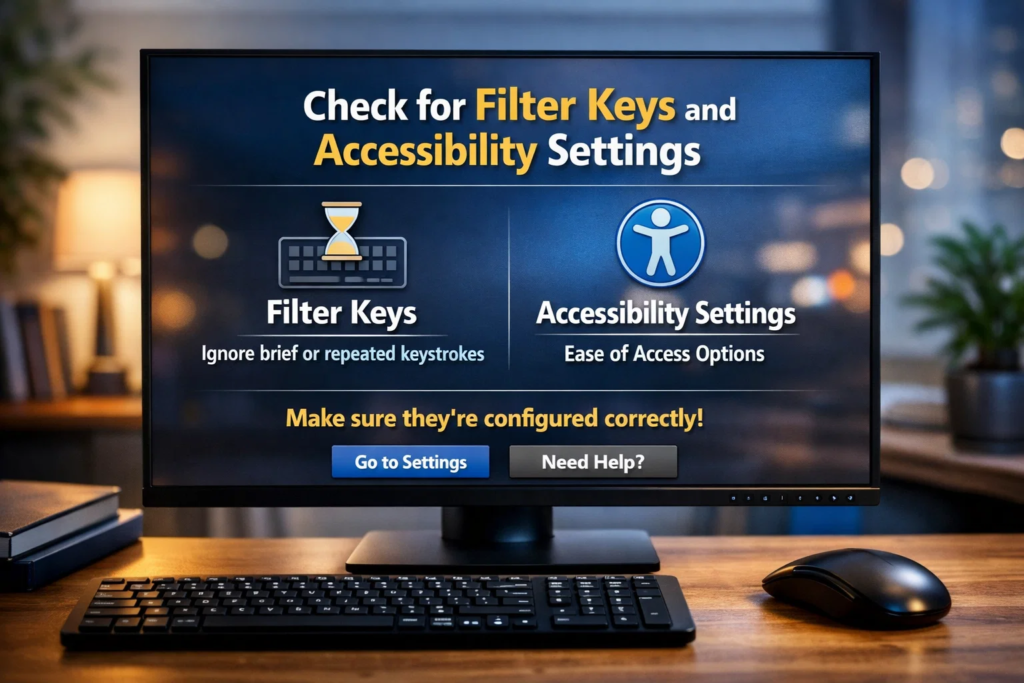
Press and hold the Right Shift key for 8 seconds. If Filter Keys is enabled, this shortcut will disable it. Alternatively, navigate to Settings > Accessibility > Keyboard, and turn off Filter Keys manually. Restart your computer afterward to ensure the changes take effect.
This method resolves a large percentage of keyboard lock complaints, especially when the issue occurs suddenly without hardware damage.
Restart Your Computer
It may sound simple, but restarting your PC can fix temporary system glitches. Software conflicts, background processes, or incomplete updates sometimes interfere with input devices.
How to unlock a keyboard? Click the Start menu and choose Restart. If your keyboard isn’t responding at all, use your mouse or hold the power button until the system shuts down safely. After rebooting, test the keyboard again. A fresh startup often restores normal functionality.
Update or Reinstall Keyboard Drivers
How to unlock a keyboard? Outdated or corrupted drivers frequently cause keyboard malfunctions. Windows uses device drivers to communicate with hardware, and if these drivers fail, the keyboard may stop responding.
Open Device Manager, locate “Keyboards,” and right-click your keyboard device. Select “Update driver.” If updating doesn’t help, choose “Uninstall device,” then restart your computer. Windows will automatically reinstall the appropriate driver. Keeping drivers updated ensures compatibility with recent security patches and system upgrades.
Check Num Lock and Function Lock
Sometimes the keyboard isn’t locked but behaving differently due to Num Lock, Caps Lock, or Function (Fn) Lock. On laptops, pressing Fn + Num Lock may toggle the numeric keypad mode, affecting certain keys.
How to unlock a keyboard? Look for small LED indicators on your keyboard. Toggle these keys to see if functionality returns to normal. This quick step is especially helpful when specific keys are unresponsive rather than the entire keyboard.
How to Unlock a Keyboard on macOS
Apple users occasionally face similar issues, though the causes differ slightly. If you’re using a MacBook or external Apple keyboard, try the following methods.
Check Slow Keys and Accessibility Features
macOS includes accessibility tools such as Slow Keys, which require you to hold keys longer before they register. If enabled accidentally, typing can feel delayed or disabled.
Open System Settings > Accessibility > Keyboard, and ensure Slow Keys is turned off. Test your keyboard afterward. This setting often creates confusion for users who are unaware it was activated.
Reset the System Management Controller (SMC)
How to unlock a keyboard? On certain Intel-based Macs, resetting the SMC can resolve hardware-related keyboard issues. Shut down your Mac, then press and hold Shift + Control + Option + Power simultaneously for 10 seconds. Release the keys and power the device back on.
For Apple Silicon Macs, simply restarting the system usually handles most controller resets automatically. How to unlock a keyboard? This method is effective when hardware components temporarily fail to respond.
Check External Keyboard Connections
How to unlock a keyboard? If you’re using a wired keyboard, unplug it and reconnect it to a different USB port. For wireless keyboards, ensure Bluetooth is enabled and the battery level is sufficient. Low battery power is a surprisingly common cause of unresponsive keys.
How to Unlock a Laptop Keyboard Physically
In some cases, the issue is not software-related but physical. Spills, dust, or debris can interfere with internal key mechanisms.
Clean the Keyboard Carefully
Turn off your laptop and disconnect it from power. Use compressed air to remove dust between keys. Avoid inserting sharp objects that could damage the key switches. If you suspect liquid damage, allow the device to dry completely before attempting to use it again.
Regular cleaning prevents stuck keys and extends the lifespan of your keyboard.
Check for Keyboard Lock Key (Rare but Possible)
How to unlock a keyboard? Some older laptops include a dedicated keyboard lock shortcut. This may involve pressing Fn + F6, Fn + F11, or another function key, depending on the manufacturer. Look for a small keyboard icon on your function keys.
Consult your laptop manual if available. Manufacturers such as Dell, HP, and Lenovo sometimes assign specific shortcuts for enabling or disabling keyboard input.
How to Unlock a Wireless Keyboard
How to unlock a keyboard? Wireless keyboards introduce additional troubleshooting steps because they rely on batteries and signal connections.
Replace or Recharge Batteries
Weak batteries can cause intermittent or complete failure of keyboard input. Replace them with fresh batteries or fully recharge the device. Many wireless keyboards have a small LED indicator that flashes when power is low.
Reconnect the Receiver or Bluetooth
How to unlock a keyboard? If your keyboard uses a USB receiver, unplug it and plug it back in. For Bluetooth models, remove the device from your system’s Bluetooth settings and pair it again. This refreshes the connection and often restores responsiveness immediately.
Signal interference from nearby electronics can also disrupt connectivity, so ensure the receiver is within the recommended range.
Fixing a Keyboard Locked by Software or Security Settings
Sometimes antivirus programs, parental controls, or corporate security policies restrict input devices. If you’re using a work computer, check whether administrative settings are limiting keyboard access.
Malware infections can also interfere with system input. Running a full system scan using reputable security software can rule out malicious causes. Keeping your operating system updated with the latest security patches ensures stable device performance.
If none of the basic methods work, consider performing a system restore to a previous working state. This option is particularly useful if the problem started after installing new software or updates.
When to Seek Professional Repair
If you’ve tried all troubleshooting methods and your keyboard remains unresponsive, the issue may be hardware-related. Internal ribbon cables inside laptops can loosen or fail over time. Mechanical keyboards may suffer from worn-out switches.
In such cases, visiting a certified technician or authorized service center is recommended. Attempting to open a laptop without proper knowledge can void warranties or cause further damage. Hardware replacement is sometimes more cost-effective than extended troubleshooting.
Preventing Future Keyboard Lock Issues
Prevention is always better than repair. Keep your keyboard clean and dry, avoid eating or drinking near it, and install system updates promptly. Use surge protectors to prevent electrical damage. Regularly check accessibility settings to ensure no unintended features are enabled.
Creating a habit of safe device handling reduces the likelihood of future interruptions. Simple maintenance steps can significantly extend your keyboard’s lifespan and maintain smooth performance.
Conclusion
Understanding how to unlock a keyboard doesn’t require advanced technical knowledge. Most keyboard lock issues stem from simple causes like accessibility settings, driver errors, connectivity problems, or accidental key combinations. By methodically checking software settings, restarting your device, updating drivers, and inspecting physical connections, you can resolve the majority of problems quickly.
If the issue persists despite troubleshooting, hardware repair may be necessary. With the right approach, however, you can confidently restore your keyboard and return to work without unnecessary stress. Staying proactive with maintenance and updates ensures your typing experience remains smooth and reliable.
Frequently Asked Questions (FAQs)
1. Why is my keyboard suddenly not typing?
This often happens due to Filter Keys, driver issues, or accidental key combinations. Restarting your system and checking accessibility settings usually resolves the problem.
2. How do I unlock my laptop keyboard if it’s completely unresponsive?
Start by restarting your laptop. Then check accessibility features, update drivers, and inspect physical connections. If the issue continues, hardware repair may be required.
3. Can a virus lock my keyboard?
Yes, certain malware can interfere with input devices. Running a full system security scan helps eliminate this possibility.
4. What key combination unlocks a keyboard?
On many Windows systems, holding the Right Shift key for 8 seconds disables Filter Keys. Some laptops may use Fn + specific function keys depending on the manufacturer.
5. How do I fix a wireless keyboard that won’t type?
Replace the batteries, reconnect the USB receiver, or re-pair the device via Bluetooth. Signal interference or low power is commonly responsible.
6. When should I replace my keyboard?
If cleaning, reconnecting, updating drivers, and system resets fail, and hardware damage is confirmed, replacing the keyboard is usually the best solution.
For More Update and Stories Visit Daily Guides